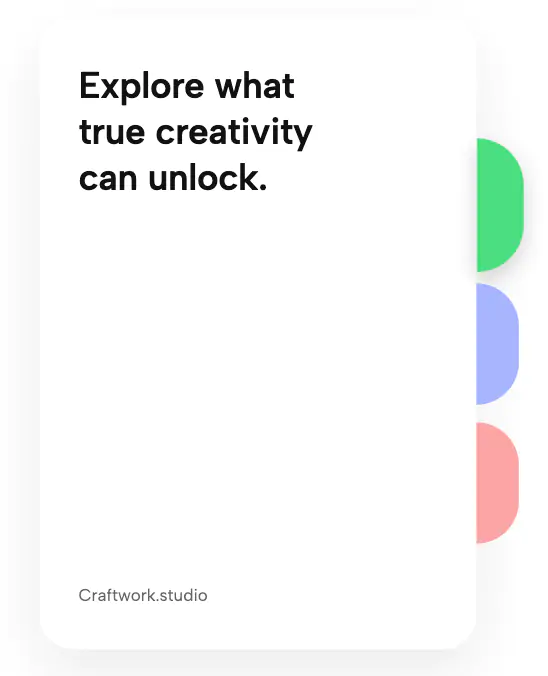
Bring the sleek, polished feel of a native mobile app to your website with the Segmented Control Tabs widget.
This layout abandons traditional lists for a floating "Pill" navigation bar. Buttons are grouped together in a single container with a distinct active state (white background with shadow on a gray track), a UI pattern popularized by iOS and modern SaaS dashboards.
Below the navigation, the content is presented in a clean split-card layout. Large, rounded-corner images sit alongside punchy, formatted text. The design relies on generous padding, soft shadows, and font-family: inherit to seamlessly blend with high-end, modern branding.
Key Features:
Bring this layout to life on your website in just a few clicks.

Edit Segmented Control Tabs - Modern App Interface visually using the native Squarespace extension
First, ensure you have connected your website to the native Redesignee extension. Once connected, you have two easy ways to build:
Native Block: Simply add the native Redesignee Widget Block directly from the fluid engine editor menu inside Squarespace.
Manual Markdown: Add a standard Markdown Block, paste your widget’s code snippet, and the Redesignee floating "Customize" button will automatically appear right over the block.
Both methods let you tweak settings, copy items, and design visually in real time. Saving your changes syncs the updates instantly to your live page.
See Squarespace installation guide
Connect natively via Gutenberg or Elementor
Make sure you have the free Redesignee WordPress Plugin installed. To drop the Segmented Control Tabs - Modern App Interface into Elementor, simply drag and drop the Redesignee widget from your sidebar. If you are using the Gutenberg Block Editor, click the " + " icon and select the Redesignee Block. Launch the Cloud Library directly inside your workspace, choose your customized template, and import it with a single click. It automatically inherits your theme fonts and styles!
WordPress plugin installation guide
Quick copy-and-paste for custom setups
If you are using Webflow, Shopify, Wix, or a custom HTML site, click the "Export Widget" button on this page and ensure the platform selector is set to "HTML". Click "Copy" to copy the clean, un-nested source code snippet directly to your clipboard. Paste this code into any HTML component, Code Block, or Embed tool inside your website builder. All styles, animations, and scripts are self-contained and ready to run.
This Segmented Control Tabs - Modern App Interface widget is optimized and categorized inside the following layout packs:
Convert your product traffic effortlessly. Tweak tech-focused feature sections and pricing tables in our cloud library, grab the optimized code, and paste them directly into your layout.
Elevate your business site layouts instantly. Browse free and premium corporate modules from our cloud library, adjust elements visually, and copy-paste clean layouts straight to your page engine canvas.
Embrace pristine minimal structures. Tweak crisp whitespace templates visually inside our cloud canvas layout, copy the fast-rendering script output, and paste it straight onto your host site.
Make an unmissable statement. Customize high-impact typography elements, brutalist layouts, and high-contrast sections from our cloud repository to craft layouts that refuse to be ignored.
Bring asymmetric, magazine-style aesthetics to your web project canvas. Browse editorial grids and refined typography elements from our cloud repository and copy-paste clean code rows.
Grab your visitors' attention instantly. Browse our collection of native WordPress hero blocks, customize the typography and backgrounds visually, and copy the markup straight into your Gutenberg editor.
Launch stunning landing pages faster. Explore fully responsive Elementor hero sections with advanced layouts, tweak the design in our cloud library, and drop them seamlessly into your page builder.
Published:
Jan 27, 2026 04:45 AM
Category: